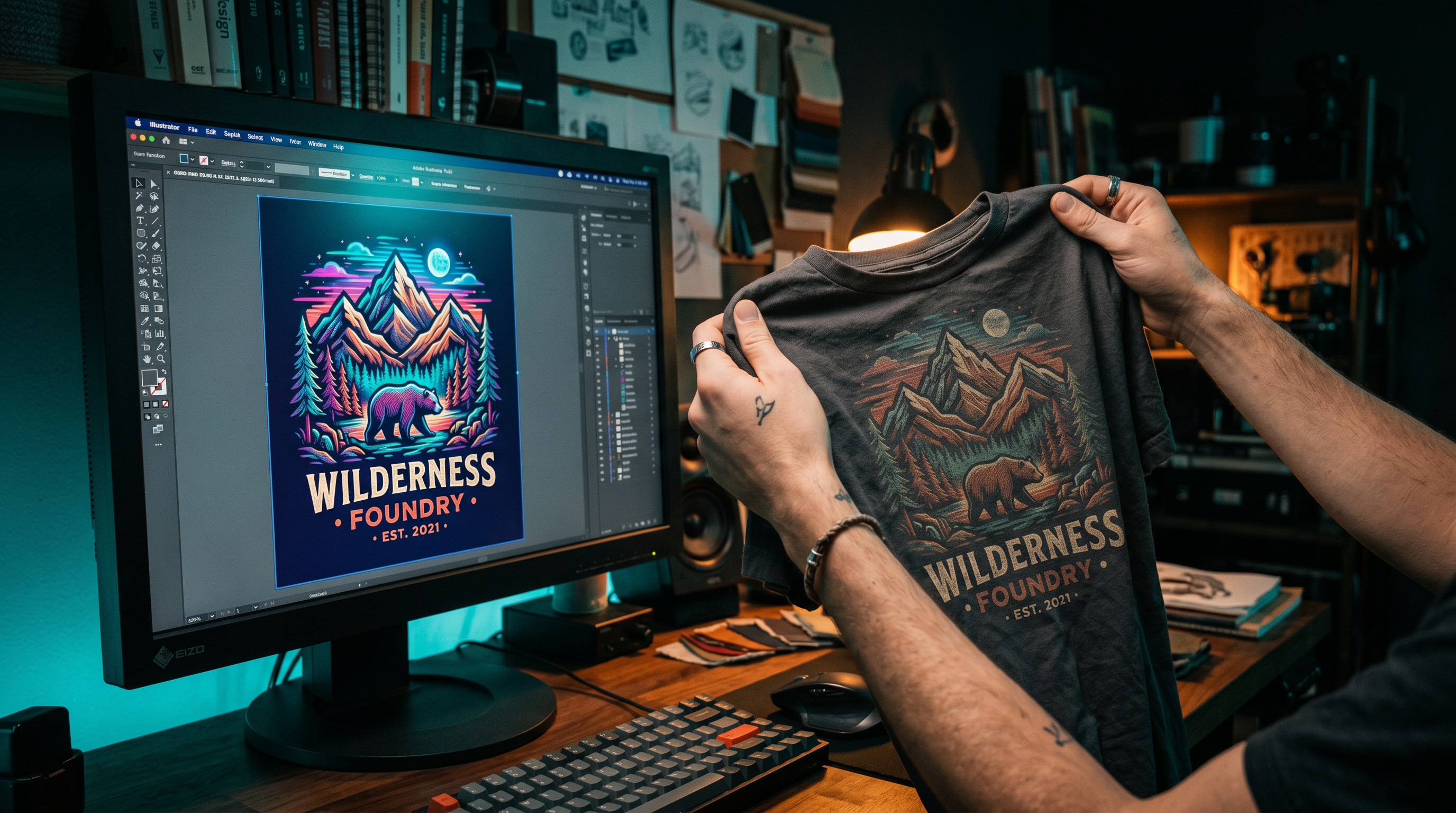
CMYK vs RGB for Print on Demand: Which Color Mode Should You Use?
For most print-on-demand platforms — Printify, Printful, and Redbubble included — you should design in RGB. These platforms accept RGB files, process everything internally in RGB, and convert to CMYK at the point of printing. Uploading a CMYK file often causes worse color shifts than uploading RGB, not better ones.
That said, understanding why colors shift in that final conversion — and which colors shift the most — is what separates a design that looks great on a shirt from one that comes back muddy and dull.
What RGB and CMYK Actually Mean (The Short Version)
RGB stands for Red, Green, Blue. It’s an additive color model: your monitor creates colors by mixing light. Add all three at full intensity and you get white. This is why RGB colors can look intensely vivid on screen — they’re literally made of light.
CMYK stands for Cyan, Magenta, Yellow, and Key (black). It’s a subtractive color model: printers create colors by layering ink on paper. The ink absorbs (subtracts) certain wavelengths of light. Because ink can never be as bright as light itself, CMYK has a smaller range of reproducible colors than RGB.
That gap between what RGB can display and what CMYK can print is called the color gamut difference. Some colors you see on screen simply cannot exist as ink on fabric — and that’s the root of every print color frustration in POD.
Why POD Platforms Ask for RGB Files
Printify’s help documentation states clearly: their system does all operations in RGB. If you upload a CMYK file, it gets auto-converted back to RGB — and that double conversion (RGB → CMYK → RGB) can introduce more color error than just uploading RGB to begin with.
Printful’s guidance specifies the sRGB IEC61966-2.1 color profile as their recommended standard. Their production software converts sRGB files to CMYK during the print run using calibrated profiles. According to Printful’s Color Matching Disclaimer, they use “specialized software” that handles the conversion for their industrial printers.
Redbubble accepts both RGB and CMYK uploads and notes that “printed products will look more muted than you see on your monitor” — which is honest, if not comforting.
| Platform | Recommended Color Mode | What They Do With CMYK Files |
|---|---|---|
| Printify | RGB (PNG) | Auto-converts to RGB; colors may shift significantly |
| Printful | sRGB IEC61966-2.1 | Converts to CMYK during production using calibrated software |
| Redbubble | RGB or CMYK accepted | Converts as needed; warns colors will appear more muted |
The pattern is clear: all three platforms convert your file at some point. Designing in RGB and letting them do one clean conversion is safer than designing in CMYK and having the system convert it twice.
Check your file is print-ready: Our free DPI Checker validates your design specs before you upload to any POD platform. Check DPI Free →
Which Colors Shift the Most When Printing
Not all colors behave equally in the RGB-to-CMYK conversion. Colors that live near the edges of the CMYK gamut shift the most — and those tend to be the brightest, most saturated colors that look the best on screen.
Neon and fluorescent colors are the worst. Neon yellow, neon green, neon pink, and electric blue often fall completely outside the CMYK color gamut. According to TPOP’s color guide for POD, “a certain number of colors are excluded from four-colour printing, such as certain greens or electric blues, which will be completely eliminated.” Fluorescent colors simply cannot be reproduced with standard CMYK inks.
Bright reds shift orange or lose saturation. The CMYK gamut clips vibrant reds, which is why a fire-engine red on screen can come back as a rust or brick tone.
Purple and violet are notoriously inconsistent. Purple lives in a tricky zone between red and blue, and different printers handle the balance differently — some skew too red, others too blue.
Vibrant magentas can shift toward “dark plum” tones, according to Printful’s color guidance. The brighter the magenta on screen, the more it risks washing out in print.
Bright orange also clips, often becoming a muted terracotta.
Colors that tend to hold up well: mid-tone blues, greens, earth tones, neutrals, and anything that was already fairly desaturated in your design.
How to Design Defensively for POD
Knowing which colors shift is useful. Knowing how to work around the shift is what matters for your store.
1. Preview in CMYK before you upload
Both Photoshop and Illustrator let you preview your design in CMYK without permanently converting it. In Photoshop, go to View → Proof Setup → Working CMYK, then toggle View → Proof Colors (Ctrl/Cmd+Y). In Illustrator, go to View → Proof Setup → Document CMYK. This shows you approximately how the colors will print.
Printify’s own guidance recommends this exact workflow: design in RGB, preview in CMYK mode to assess the shift, undo any conversion, then export in RGB for upload.
2. Use the Gamut Warning tool
Photoshop’s Gamut Warning (View → Gamut Warning) overlays a gray mask on any color in your design that falls outside the CMYK range. If large areas of your design go gray, those are the areas most at risk of shifting. Adjust those colors toward less-saturated equivalents until the warning clears.
3. Avoid pure neons in hero elements
If neon colors are part of your design aesthetic, don’t put them on critical elements like faces, product logos, or key text. Neon can work as an accent — but an electric green background will print as a dull olive, and there’s no fix for that after the fact.
4. Reduce saturation by 10–15% on high-risk colors
A common practical workaround: pull back saturation on any very bright color before exporting. If your red is at 100% saturation, try 85%. The on-screen version looks slightly less vivid, but the printed version lands much closer to your intention.
5. Order a sample before listing
Every serious POD seller orders a physical sample of new designs before going live. No CMYK preview tool is a substitute for seeing actual ink on actual fabric. Printify, Printful, and Redbubble all offer sample ordering. The cost of one sample is far less than the cost of customer refund requests.
Platform-Specific Notes
Printify: Upload PNG files in RGB mode. According to Printify’s official help documentation, “Printify’s system does all operations in RGB.” CMYK files are accepted but auto-converted. Use their mockup preview toggle to switch between RGB and CMYK views before submitting.
Printful: Use sRGB color profile specifically — not just “RGB” in general. Printful’s documentation cites sRGB IEC61966-2.1 as the correct profile. They also recommend using “rich black” (60/40/40/100 CMYK values) instead of pure black for fabric printing, as pure black ink alone can look flat on garments.
Redbubble: Redbubble accepts both color modes, but their own guidance tells you to “preview your work in CMYK” and expect that “printed products will look more muted than on your monitor.”
Use Assets Designed for Print From the Start
One of the cleanest ways to avoid color shift problems is to start with design assets that were built for print from the beginning. Creative Fabrica’s library includes graphics, fonts, and design elements created specifically for physical products — POD apparel, stickers, mugs, and more.
Generate a Print-Ready Design Free →
Frequently Asked Questions
Should I use CMYK or RGB for Printify?
Design in RGB and upload in RGB. According to Printify’s official help documentation, their system operates entirely in RGB. Uploading a CMYK file causes an automatic conversion to RGB that can shift colors significantly. The recommended workflow is to design in RGB, use your software’s CMYK preview to check for color shifts, then export in RGB.
Why do my colors look different when printed on POD products?
The core reason is the gap between RGB (light-based) and CMYK (ink-based) color gamuts. RGB can display colors — especially very bright and saturated ones — that ink physically cannot reproduce. When your file is converted for printing, those out-of-gamut colors get clipped or shifted to the closest printable equivalent.
Which colors shift the most in print-on-demand printing?
Neons and fluorescents shift the most and often cannot be reproduced at all in CMYK. After those, bright reds, vibrant purples, electric blues, and bright magentas are most affected. Earth tones, mid-blues, and desaturated colors hold up the best.
Can I design in CMYK for Printify or Printful?
You can upload CMYK files to both platforms, but it’s not recommended. Printify converts CMYK files to RGB automatically, which can cause additional color errors. Printful recommends sRGB specifically. Design in RGB, preview the CMYK output in Photoshop or Illustrator, and adjust problem colors before exporting.
What is the best color profile for Printful?
Printful recommends sRGB IEC61966-2.1 as the standard working color space for files submitted to their platform. You can set this in Photoshop under Edit → Color Settings. Printful’s software then handles the conversion to CMYK during production.
Platform specifications sourced from Printify’s official help documentation, Printful’s Color Matching Disclaimer and blog, and Redbubble’s help center.